Photographer Trained AI for Photographers
2019, AdobeAbout the Project
Exploring AI-powered automation service ideas for Lightroom CC to reduce photographers' repetitive manual works.
The goal is creating a scalable UX workflow of AI-powered automation services.
Problem to be Solved
Photographers still waste time on manual works and repetitive efforts nowadays, even though photography is a mature industry with numerous available technologies.
In-app AI-powered automation services will save photographers’ time from repetitive works and personalize suggestions to their unique aesthetic.
Design Process
The orange highlighting boxes are the focused areas showcased in this project. This's an on-going self-driven side project.
Ideal User Journey
Imagine an automated user experience…

Andy, a professional wedding photographer
He just finished a wedding photoshoot.
CHALLENGE
His next tasks are:
selecting great shoots quickly from massive photos he just took, and
making selected photos look great with a minimum effort, but the autotune doesn’t work correctly for different skin colors nor the bride’s white gauze which typically in the extreme end of exposure histogram, so does the bridegroom’s dark suit.
VALUE PROP
AI detects ‘out of focus’ photos and suggests flagging those as rejected.
AI recognizes the bride’s white gauze in photos and suggests optimizing those.
Users can preview suggestions and edit adjustments before applying.
Users can always see the history of applied suggestions and reverse or edit as all adjustments are non-destructive.
Scenario 1
FTU
1-1: Launch
Andy launches Lr CC and sees his latest photos imported earlier.
1-2: Contextual FTU
Andy is notified by a popup tooltip about AI-powered suggestions relevant to his work.
Personalization
The FTU message is personalized according to users’ content. In Andy’s case, 3 top suggestions are contextual to his latest wedding photoshoot. A landscape photographer would see suggestions relevant to landscape items, and so on.
Scenario 2
Reviewing Suggestions
2-1: AI Suggestions Panel
Since the suggestions look relevant to his works, Andy clicks the Suggestions icon out of curiosity and see all suggestions in the panel.
2-2: Preview
The first suggestion is about automated filtering. Andy clicks the Preview button and all ‘out of focus’ focus photos are shown.
2-3: Advanced Editing
Andy clicks the Advanced Edit icon and sees more options for this automation.
Scenario 3
Editing Suggestions
3-1: Editing
Rather than flagging ‘out of focus’ photos as rejected, Andy may want to set those focused and clear photos as 1 star. He clicks the Set option and chooses the opposite photos.
3-2: Intelligent Reaction
Andy sees the suggested action becomes setting as 1 star.
Scenario 4
Applying Suggestions
Apply & Result
Andy decides to use the flag feature. He clicks the Apply button and sees the result that all ‘out of focus’ photos are flagged as rejected and filtered out of the preview screen. Now he can focus on choosing the best shots without noises from ‘out of focus’ ones.
Scenario 5
Suggestions History
5-1: History Panel
Andy notices the Recently Applied label at the bottom of the Suggestions panel turning on after applying the suggestion.
5-2: Latest Suggestion
Andy clicks the label and sees the applied suggestion that he just did.
Micro-Interaction
Users can drag the division line to enlarge the section in the panel too.
Clicking the label to show the first/latest applied suggestion.
5-3: Review
Andy also notices the View icon when the mouse cursor hovering on the cell. He clicks and sees those photos.
Error Handling
If the photos that have been applied suggestions were removed, a message should be shown.
Scenario 6
Editing after Suggestions Applied
Reserved as Adjustment Brush
Andy applied all suggestions including ‘optimizing bride’s white gauze’. In one of the photos, he sees the suggested adjustments are reflected in an Adjustment Brush. He clicks the brush anchor and can edit the applied adjustments there.
Scenario 7
Custom Automated Task
Customizable automation for unique needs
Andy can creates the automation services workflow according to his aesthetic preferences.
AI-powered Automation Workflow
Considering the AI suggestions as a service, the design thinking is crossing both backstage and front stage. Here is a simplified workflow:
AI Suggestions Workflow
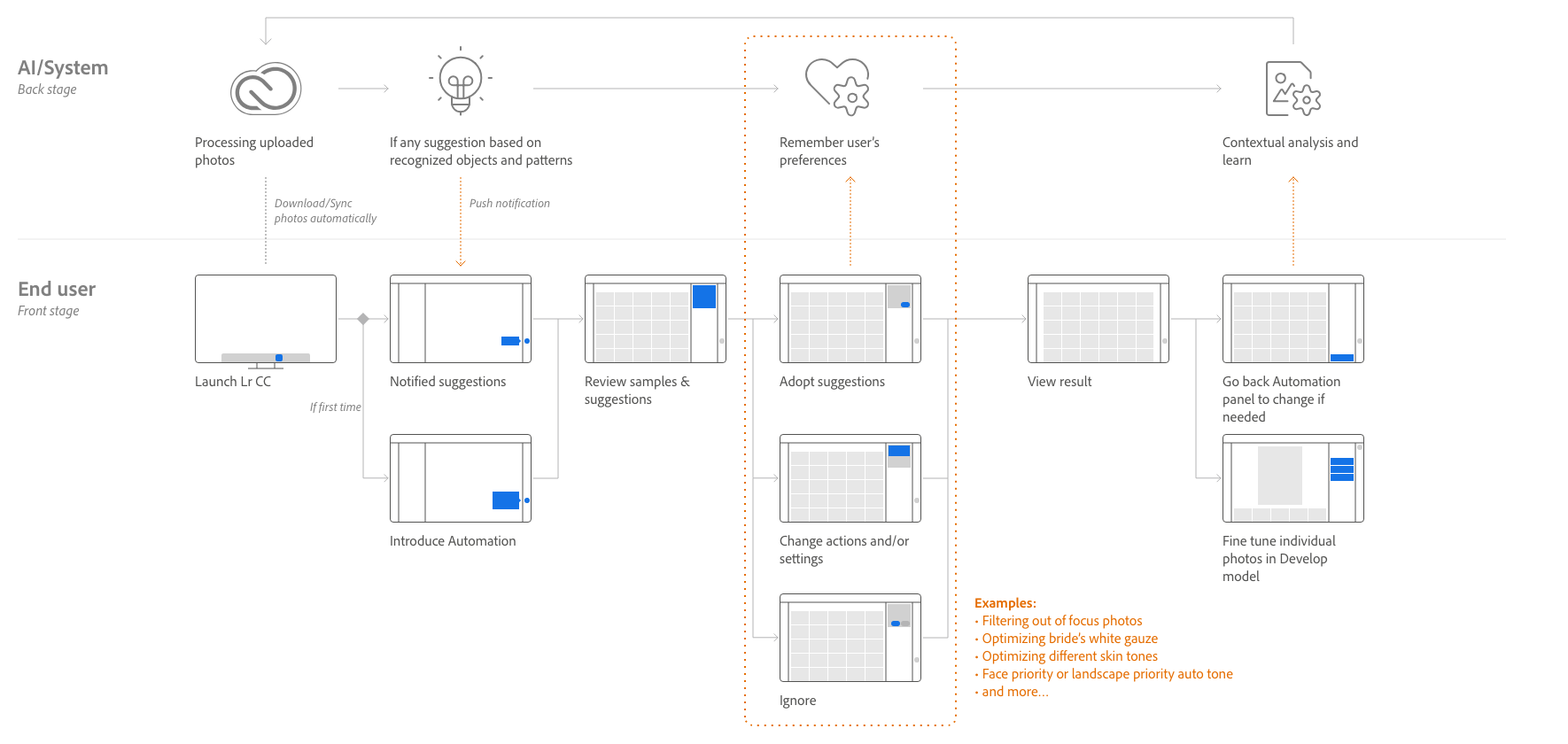
Above ideal scenarios are abstracted from the workflow:
FTU
Reviewing Suggestions
Editing Suggestions
Applying Suggestions
Suggestions History
Editing after Suggestions Applied

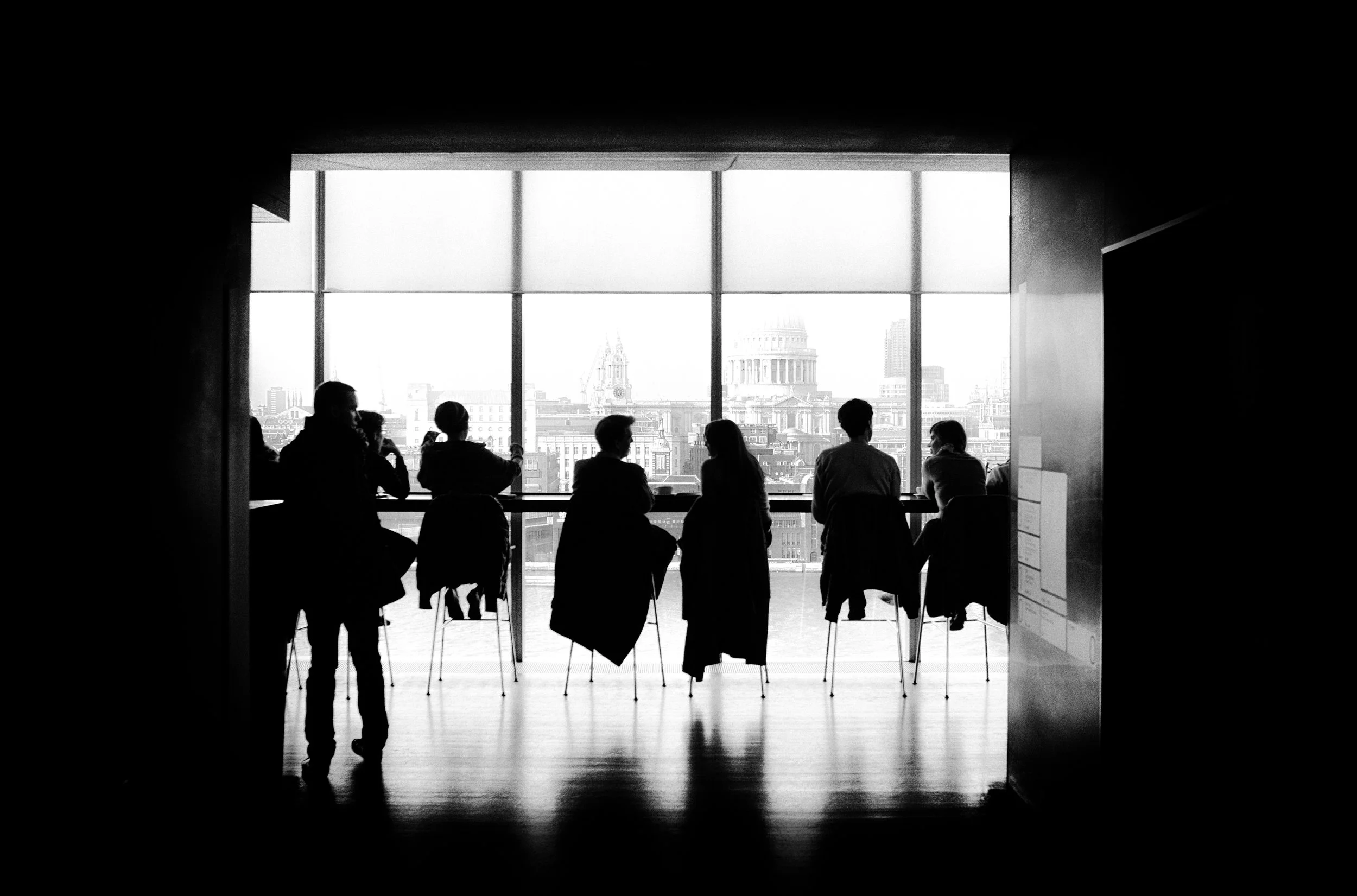
From Research to User Journey
Ideal experience comes from user journey
Ideas came from user interviews and years of experience of amateur photography and post-production. 2 of the user interview below:

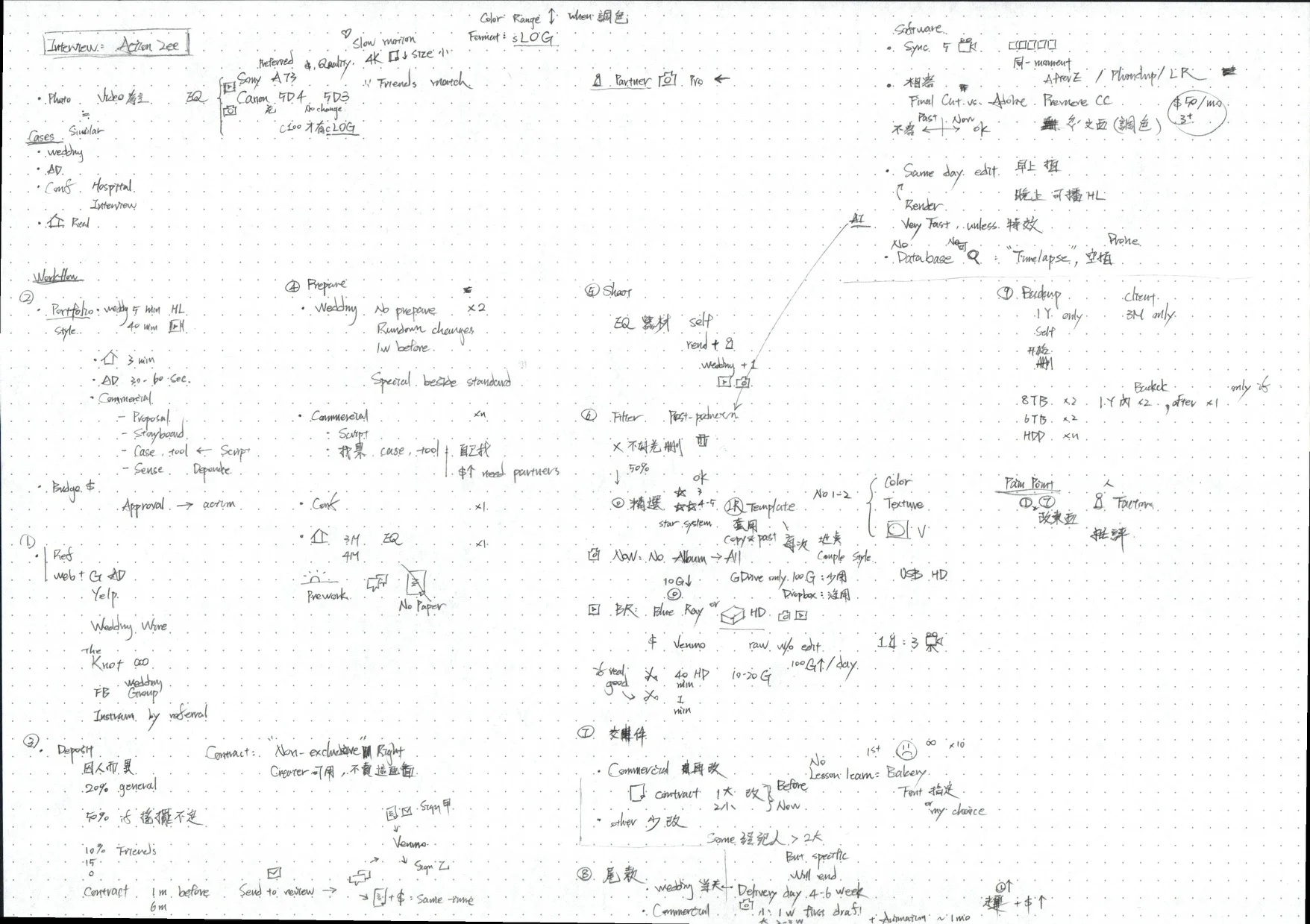
Then synthesized users' tasks and pain points into persona lite and user journey map and reframed into opportunities:
Journey Map
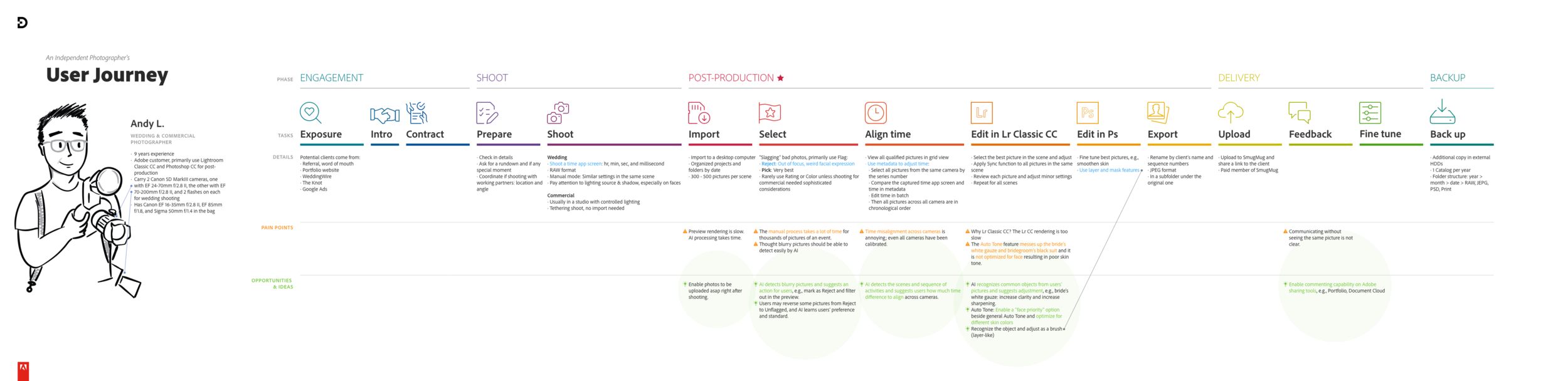
Click to view the PDF in a new tab
Summary
Many pain points in the user journey map are still not addressed yet. AI-powered automation can be a dynamic solution for modern photography post-production.
Last, some sketches foreshow more advanced automation for large scale:
(To be continued...)